Use-case descriptions
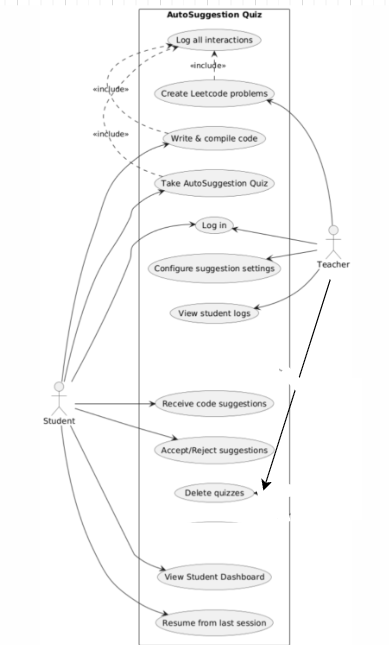
Teacher User
Use Case 1 - Account Creation
I want to be able to create an account.
- The user opens the AutoSuggestion Quiz web application, and the account creation page opens.
- The user provides their email address and university name.
- A one-time password (OTP) is sent to the user’s email address.
- The user enters the OTP.
- If the OTP is valid, the user is notified that account creation was successful and is redirected to the home page/dashboard of their account.
Use Case 2 - Signing In
I want to be able to log into my account.
- The user opens AutoSuggestion Quiz, and the account creation/sign-in page opens.
- The user selects the Login button, and the sign-in page opens.
- The user enters their email and password.
- If the credentials are correct, the user is redirected to the home page/dashboard of their account. If the credentials are incorrect, the user is notified.
Use Case 3 - Uploading Leetcode Problems
I want to upload new Leetcode problems, add a boilerplate for my students to base their code off of, and incorporate restrictions for my students when doing the quiz.
- From the home page/dashboard, the user clicks the Upload Problem Set button. The user is redirected to a new page with input fields for questions, answers, and code.
- The user fills out these fields by entering a question, possible multiple-choice answers, and a code boilerplate.
- Once completed, the user can toggle quiz restrictions on the left side of the page, such as showing the correct answer, allowing multiple attempts, etc.
Use Case 6 - Publishing Problems
I want to publish the problem and generate a shareable access key.
- After the quiz has been completed, the user clicks the Publish button at the bottom of the page.
- If all required information has been entered, a pop-up appears stating that the quiz has been published and providing an access key for the quiz.
- If not all information has been entered, the user is notified that the quiz is incomplete and is prompted to complete it.
Use Case 7 - Navigating Dashboard
I want to view my students’ progress, grade their work, and publish the grades.
- After login or account creation, the dashboard displays buttons for uploading quizzes, viewing existing quizzes, and viewing student progress and grades.
- The user clicks View Student Progress and Grades and is redirected to a new page. The page shows student progress and includes an option to search for individual students.
- The user searches for a student and clicks on their progress. A window opens displaying the student’s progress and their answers.
- To grade the student’s work, the user enters a grade in an input field and may include notes.
- Once done, the user clicks Save and Publish.
- If not all input fields have been filled out, the user is notified to complete them.
- If all fields are complete, the user is notified that the grade has been published.
Use Case 8 - Deleting a Question from a Quiz
I want to remove an incorrect or outdated question from a quiz.
- The user navigates to View Existing Quizzes from the dashboard.
- The user selects the quiz containing the question they want to delete.
- On the quiz editing page, the user clicks the Delete button next to the specific question.
- A confirmation pop-up appears asking the user to confirm the deletion.
- Once confirmed, the question is removed from the quiz, and the user is notified that the deletion was successful.
Use Case 9 - Changing a Grade for a Student
I want to update a previously entered grade for a student.
- The user navigates to View Student Progress and Grades from the dashboard.
- The user searches for the student whose grade needs to be updated.
- The user selects the student and views their grades.
- The user edits the grade in the input field and may update notes if necessary.
- The user clicks Save and Publish.
- If all required fields are completed, the updated grade is saved and the student is notified.
- If any fields are incomplete, the user is prompted to complete them.
Student User
Use Case 1 – Student Creates an Account
A student registers for a new account to access the platform
- Student navigates to the Sign Up Page
- Student enters required information (name, email, password)
- Student clicks the Create Account button
- System validates the information and creates the account
- Student is redirected to the Login Page
Use Case 2 – Student Joins a Class Using an Access Code
A student enrolls in a course using a class access code provided by the instructor
- Student logs in from the Login Page
- Student navigates to the *Join Class Page
- Student enters the provided class access code
- Student clicks the Join Class button
- System verifies the code and adds the student to the class
- Student is redirected to the Student Dashboard
Use Case 3 – Student Views Dashboard
A student views available assignments, completed work, and grades
- Student arrives at the Student Dashboard
- System displays a list of available problems
- System displays previously completed problems
- System displays grades and submission statuses
- Student selects a problem to begin or resume working
Use Case 4 – Student Begins a Coding Problem
A student opens a coding problem and starts working on it
- Student selects a problem from the Student Dashboard
- System loads the Problem Page
- System displays the problem description and instructions
- System displays the code editor with starter code (if applicable)
- Student begins typing code in the editor
Use Case 5 – Student Receives and Selects Auto Code Suggestions
A student is presented with multiple code suggestions and must choose one
- Student types code in the editor on the Problem Page
- System detects a point where a suggestion is available
- System displays multiple auto code suggestions
- Student selects one suggestion from the list
- If the selection is correct:
- System highlights the correct suggestion OR
- System displays an explanation of why it is correct
- System inserts the code
- Student continues working
Use Case 6 – Student Runs Code to View Output
A student executes their code to check its output
- Student clicks the Run Code button
- System compiles and runs the code
- System displays the output or error messages
- Student reviews results and continues editing if needed
Use Case 7 – Student Submits Completed Work
A student submits their solution for grading
- Student clicks the Submit button on the Problem Page
- System validates the submission
- System records the final code and submission time
- System updates the problem status to submitted
- Student is redirected to the Student Dashboard
Use Case 8 – Student Saves Progress and Returns Later
A student pauses work and resumes it at a later time
- Student exits the Problem Page without submitting
- System automatically saves current progress
- Student later logs back into the system
- Student navigates to the Student Dashboard
- Student selects the in-progress problem
- System restores the saved code state
Use Case 9 – Student Reviews Completed Problems and Grades
A student reviews feedback and grades for completed assignments
- Student navigates to the Student Dashboard
- Student selects a completed problem
- System displays the final submission
- System displays grade and feedback (if available)
- Student reviews performance and explanations